Automatic repair tools have a reputation problem, and it is deserved: too many of them make a change you did not ask for and leave you to find it later. AMIE is built around the opposite idea. You hear every repair before it exists on disk, and you can take it back afterwards.
Before you commit
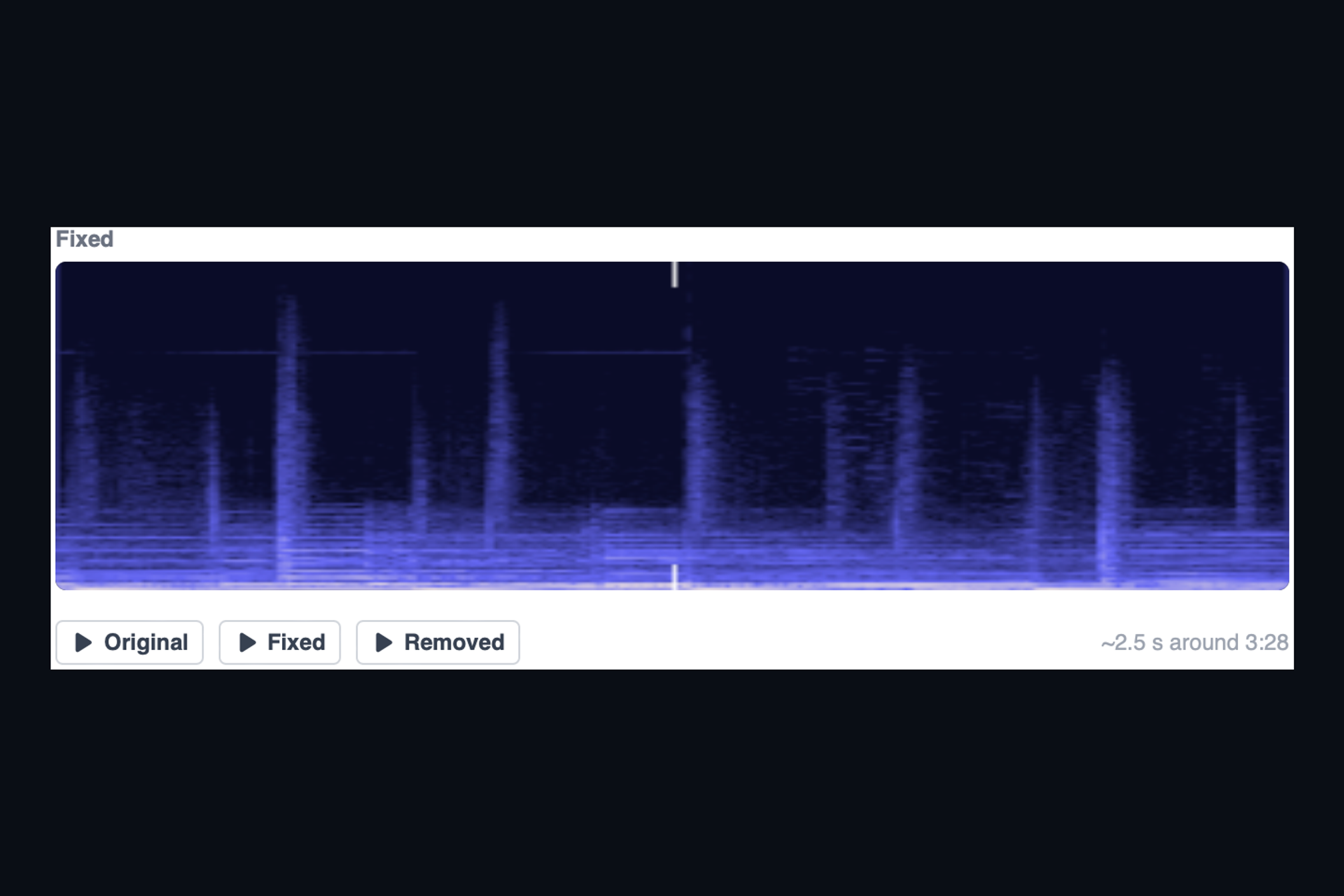
Every repair starts as a preview. The preview is rendered exactly the way the final file will be, but it lives in AMIE's cache, not in your project folder. The Repair sheet gives you three things to listen to:
- Original, the audio as it came in.
- Fixed, the repaired result.
- Removed, the difference between the two. This is what the repair took away. If it sounds like a click, the repair is right. If it sounds like music, adjust the settings and preview again.
Change the sensitivity, the maximum repair length or the widening, press Re-preview, and listen again. Discard the preview and nothing has happened.
After you commit
Accept the repairs you like and press Save. By default AMIE writes a new file next to the original with "(fixed)" in the name, so the source is untouched. If you choose to replace the original instead, AMIE keeps a copy with "(original)" in the name, and undo restores it. Individual repairs can also be undone from the review sheet, which re-renders the file without that one change.
In practice this means you can be generous with the detector and strict with your ears, and never worry about a repair you cannot reverse.
Keep reading
This post is part of a series that walks through everything AMIE does. See the whole list on the AMIE product page, or see plans and pricing.
- Next in the series: Clean "(fixed)" copies, written next to your original
- Previous: De-clip rebuilds clipped peaks that sit below full scale