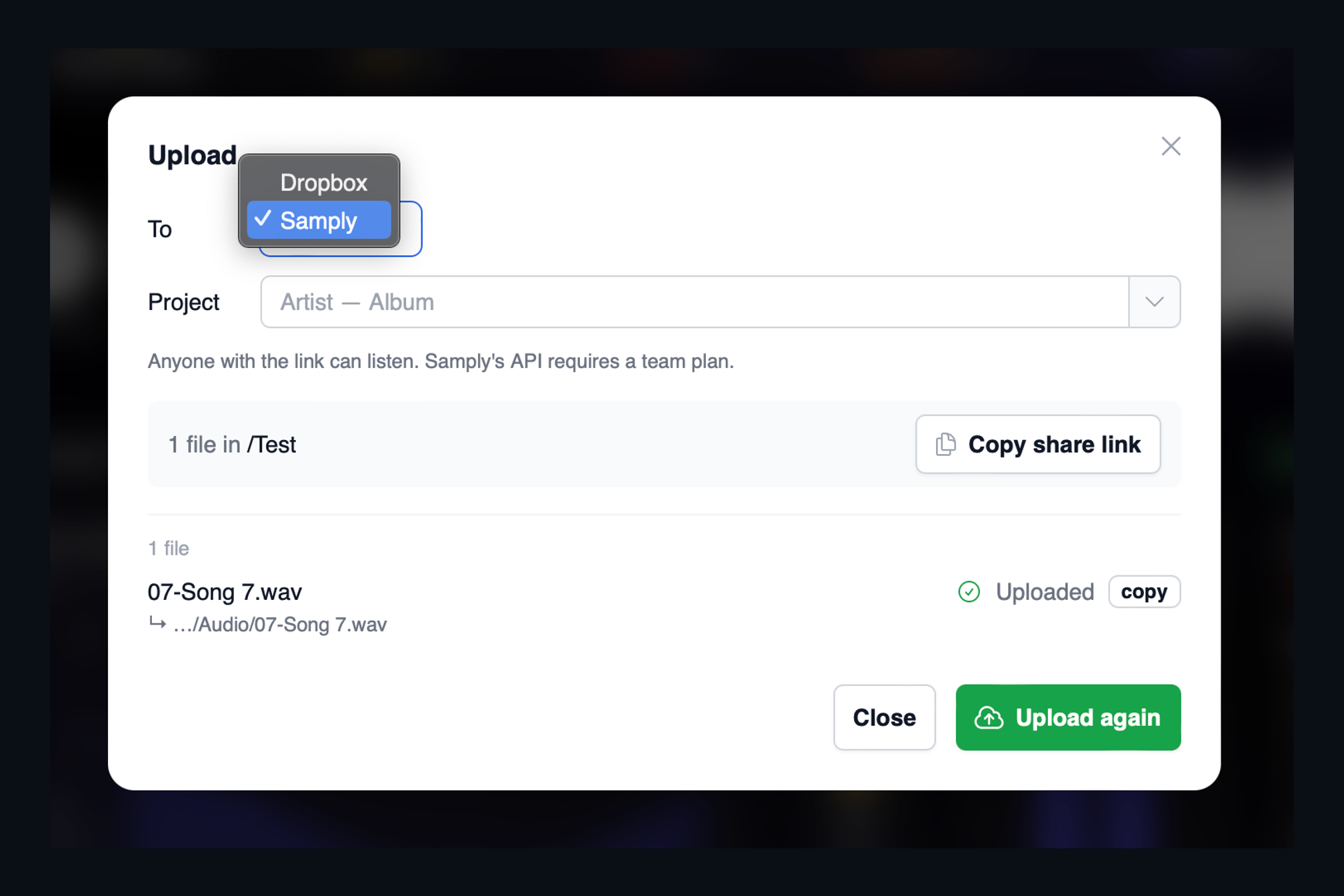
The last step of every job is the least interesting one: get the files to the client. It usually means leaving the app you were working in, finding the right folder, uploading, waiting, making a link and pasting it into an email. AMIE folds all of that into one dialog.
Connect once
Open Settings and choose Connected Services. Dropbox signs in through the normal Dropbox login, so AMIE never sees your password. Samply takes an API key from your Samply dashboard. Both connections are stored on your machine and used only when you press Upload.
Upload from where you are
The Upload button is available from the song list and from the Album Overview. Pick a destination, choose the Dropbox folder or Samply project the files should go to, and AMIE uploads them. It uploads the versions you actually finished with: if you embedded ISRCs, converted the sample rate or saved repaired copies, those are the files that go up, not the raw originals.
When the upload completes, Copy share link puts a single link for the whole batch on your clipboard, ready to paste. Each file also has its own copy button if the client needs just one track.
Why Samply
Samply is built for sharing music with clients: streaming playback in the browser, no account required to listen, and a clean page instead of a folder listing. If you already use it, AMIE drops the files straight into a project there. Samply's upload API is part of its team plan, so that is the tier you will need for this integration. Dropbox works with any account.
A release that has passed every check in AMIE should not lose its polish in the last step. Now it does not.
Keep reading
This post is part of a series that walks through everything AMIE does. See the whole list on the AMIE product page, or see plans and pricing.
- Previous: Compare all platforms in one table